Featured Artist – Julia Sutliff, Spring/Summer 2013

Julia Sutliff

Julia Sutliff creates oil paintings of nature near her home north of Baltimore, Maryland. She prefers to paint outside, “en plein air,” and in one session. This mode of working, she feels, gives her the courage and energy to take risks in her painting, and it enables her to capture color, composition, and depth perception as she experiences them. Also, the thrill of being in nature lifts her spirits, and since her paintings tend to mirror her mood, it helps to go where her mood is best. The natural world, she says (somewhat ruefully, for interior work would be more comfortable in winter), contains the only imagery that moves her to paint.

She is appreciated by collectors and fellow artists for her sense of color and her “flair for simplifying form and color in order to capture the essence of a scene.”

One notes that, “the energy in her brushstrokes takes me beyond Impressionism. It’s like Nature itself. Alive. So full of movement, always changing and evolving.”

Sutliff has been noticed for having “an eye for the underlying beauty of landscapes that most of us would overlook” and painting “places that are unspectacular, often in areas where development encroaches on nature.”

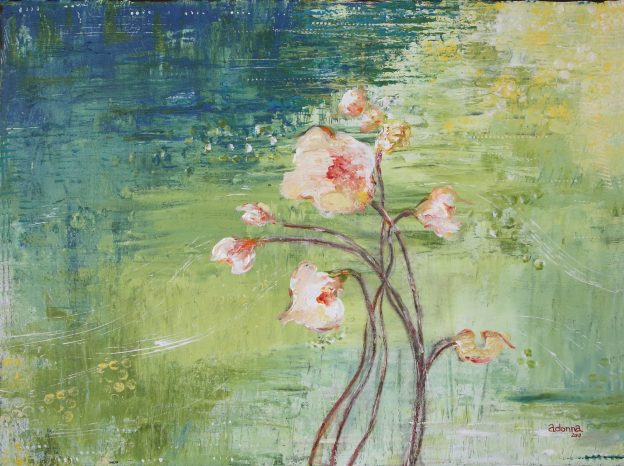
Gold Trees, 36"x28", oil on board

Gold Trees, 36″x28″, oil on board

Long Shadows, 16"x12", oil on board

Long Shadows, 16″x12″, oil on board

When viewing one of her paintings, says a collector,  “I feel I’m reaching into the heart of that scene and feeling its pulse, its heartbeat.”

Julia Sutliff received degrees in literature and teaching from Brown, the University of Maryland, and the College of Notre Dame of Maryland. She has taken classes in painting at the Rhode Island School of Design and the Maryland Institute College of Art.

Sutliff has shown her work often in Maryland and nearby states including Pennsylvania, New Jersey, Delaware, and North Carolina.

To see more of Julia Sutliff’s work visit JuliaSutliff.com.

Rainy Path, oil on board

Rainy Path, oil on board

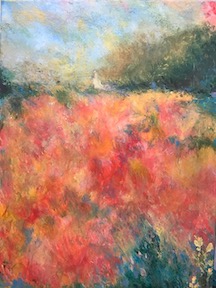
Carnival Hillside, oil on board

Carnival Hillside, oil on board


Drawn to Color

beach front property

Just what was it about this old, weather-beaten shack that kept pulling me back to it, as if by some mysterious, invisible force?

It is one of my favorite photographs from a recent trip to the Caribbean. Okay, I know that seems a little weird, at least I thought so, because in the Caribbean there is a beautiful landscape-seascape at every turn, and so much Color.

In addition my work here at Oak Creek Printworks, I teach Publishing and Prepress as well as the Adobe Create Suite at Moorpark College, a local community college. This prompted me to sign up for the Adobe Creative Cloud. For a flat monthly fee, I now have a “virtual desktop” on the Adobe Creative Cloud Server. There I have access to, not only all of the latest versions of the programs in the Adobe Creative Suite, but easy access to a myriad of tools and videos that help with all things Adobe.

Adobe Creative Cloud Dock

One of the tools on my Creative Cloud desktop is a section labeled “Colors,” where Kuler (pronounced “cooler”) performs an “extraction” on the uploaded image. The extraction draws colors from the image and displays a color palette like the one in the illustration above. The new swatches can then be downloaded and used in the Creative Suite programs. I loaded the Adobe Swatch Exchange (ASE) file into Photoshop and used the new color swatches (the last 4 in the palette) to quickly work color into the “Beachfront Property” headline and background. I selected a typeface the felt like it belonged to the old shack…and that’s when it dawned on me.

Not only was this the identical color palette I had recently chosen when redecorating my kitchen, but it is a color palette that has been recurring in many important ways since my earliest memories, beginning with summer beach vacations, and the colors of my favorite room in my early childhood home. I relate to these colors in a profound way. You might say I’m drawn to them.

So I think these particular colors have just a little to do with my emotional attachment to this out-of-focus, tightly cropped image, which I intend to make into, well, something. Beyond that tiny bit of subjectivity, I will not critique this photograph any further. I’ll leave that to anyone who has read this far!

Filed under: Uncategorized | No Comments

‘My Fonts’ Most Popular of 2012

If you love fonts as much as I do, you’ll want to check out “My Fonts” most popular faces from 2012. Enjoy!

Publishing & Prepress Class, Moorpark, CA

GR M24 Publishing and Prepress
CRN 30032
Thursdays, 6:00pm – 10:50pm
INSTRUCTOR: N. Haberman

GRM24 flyer with details

Featured Artist Update

Featured Artist header


Mark & Holly Jansen (2004)

Jansen Photo ExpeditionsMark Jansen, along with his wife Holly, run Mark Jansen Photography and Jansen Photo Expeditions. Jansen Photo Expeditions specializes in bringing their clients to beautiful areas of California and teaching them how shoot landscape photography. The tours include Big Sur, Eastern Sierra and Yosemite multi-day tours for SLR Photography. They have also been teaching local one-day workshops for special events including instruction for iPhone and SLR Photography in Ventura, Santa Barbara, and San Luis Obispo Counties. Plans for the future include photo tours of the Southwestern United States and Tanzania, Africa.

Mark and Holly Jansen

Airport Photo

Mark Jansen Photography specializes in large format murals and canvas prints for commercial applications.  Mark has his images in local businesses and commercial spaces including the Way Point Café in Camarillo, Volvo Monitoring and Concept Center and Development in Camarillo, Sysco Food Services in Oxnard, and the Santa Maria Airport Terminal.

Filed under: Uncategorized | No Comments

Celebrating 10 Years Featuring Artists

Here at Oak Creek Printworks (OCPW) we began with an idea—help artists who are making greeting cards and prints market themselves using the internet. Starting in 2003 with an Etsy-like site, we tried helping artists sell their artwork, but soon found that we could be of more service to more artists by searching out the best packaging, presentation and display items and assembling them on a single, easy-to-use online site.

During the past ten years, we have featured dozens of artists and continue to do so, spotlighting three to four each year. As we approach 2013 and the year of our 10th Anniversary, we thought it would be fitting to provide an update to let you know what they are up to today. We have devoted six pages in our current print catalog to our former featured artists, and will post highlights periodically on the OCPW Blog.

Featured Artist header


Angela Sharkey (2009)

Angela Sharkey 2012 show poster

As an artist I am thrilled to be continuing my work as an art curator for the Tri-Mission Art Gallery at the US Embassy in Rome, Italy.  This job has proven to be very rewarding and I have grown as an artist myself.

I have gained a new perspective on art and life as an artist as I listen with excitement to the gallery artists as they explain their mediums with such passion—whether it be sculpture, painting, photography, mixed media, or textile art.

Promoting these artists and their art to the US Embassy community brings people together and has been an inspiration for everyone involved.
On March 8th I was honored to be a part of the Women’s Day celebration at the French Embassy, Palazzo Farnese in Rome with my art work.

For this show I painted a new abstract painting “My Garden” on a 100mx100m canvas.  This painting was painted during the big snow storm in Rome 2012. I was 1 of 10 international women artists representing the power of women for positive change in our world.  It was a wonderful experience to show my work in such a beautiful building surrounded by history and talented women.

My next solo show will be October 2012 at the Tri-Mission Art Gallery, Rome, Italy.  In the upcoming year I look forward to working with mosaics and painting in the country side of Italy with the warm sun on my face.


Filed under: Uncategorized | No Comments

Rack up the Discounts

Facebook couponOak Creek Printworks has a Facebook page with content that doesn’t always get published on our blog.

Poke around and you may discover a discount or two.

Thinking of making a purchase? Become a Facebook Fan and get a 20 percent discount right away.

Filed under: Discounts | No Comments

Try a #10 Greeting Card for Panorama Images

Angela Sharkey

Wondering what to do with your auto-stitched and panorama photos? Bookmarks aren’t the only game in town. Long rectangles, either vertical or horizontal, transform into attractive greeting cards when presented on a #10 business sized greeting card. That’s what Angela Sharkey, former Featured Artist, did recently with some of her latest paintings. Rather than try to make the oblong shapes work on an A7, A6, or A2, more traditional greeting card shapes, Sharkey opted for the less commonly used #10 size.

 Photoshop

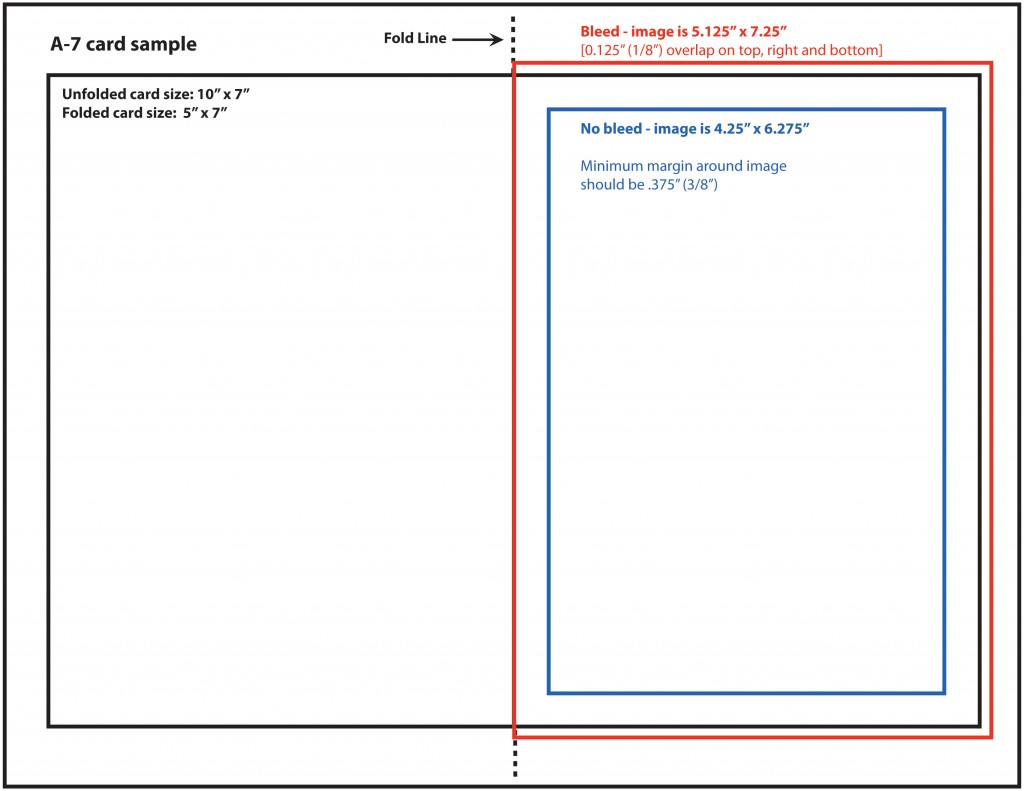
To set up your card in a Photoshop or other raster-oriented software, create a new document that is 10 inches wide by 8.75 inches in height. A document this size will accommodate the trim marks needed to accurately cut the card to size. If you want your image to bleed; that is, print all the way to the trimmed edge, it is important to extend your image beyond the trim marks by .125-inch. The bleed setting is represented here by the red line. The actual card trims to 9.25-inches wide by 8-inches in height. The trim is represented by the black line. A #10 card folds at the halfway, or 4-inch mark, represented here by the cyan (blue) line. All of these lines (including the black trim marks that fall at the four corners of the black trim line) are non-printing and part of the template. Simply redraw onto a printing layer the eight trim marks shown at the four corners.

 InDesign or Illustrator

If you use Adobe’s InDesign or Illustrator, set up a new document that is 9.25 inches wides and 8 inches in height. If your image will bleed, in the document setup options, create a bleed of .125 inch. Once the page is set up, drag a guide from the ruler to the 4-inch mark on the vertical ruler to indicate where the card will fold. To print, export your file to a print resolution .pdf with crop marks and you’re ready to rock ‘n’ roll.

Angela Sharkey is the curator of the Mel Sembler Gallery in the U.S. Embassy, Rome, Italy. View more of Angela’s art here.

Flash from the Past – Pink Flamingos Thirve

pink flamingos

Pink Flamingos flood a local neighborhood, proving once and for all that they are not extinct nor are they suburban myths.

Not Another Green Marble Background?

For a designer, creating a new look for a green marble background is like bringing out the old bell-bottoms and believing they look as cool as they did in 1969.

Filling a “simple” request can be not-so-simple if you make a lot of blind starts, like spending an hour hunting down an old CD filled with stock marble images, just to find they are in an outdated graphic format.

A second blind start—searching stock images—another hour easily wasted as I realized, why not create an original image? Not only can it be easy, but the price is right. We refurbished our kitchen a few years back, and while out searching for the right granite counter top, I took plenty of photographs of the various granite and marbles, but none were green. Take them into Photoshop, and with a couple of well placed clicks I was able to turn my images into perfectly suitable green marble backgrounds.

gold marble

This is the original photograph of the marble.

green marble

By applying levels to increase the image’s contrast, and then applying a hue and saturation effect, the result is this rich, green marble-like background.

There are only two steps to go from the original photograph of the gold marble to the green. First, I created an adjustment layer for “levels” to increase the image contrast. The adjustment layers are forgiving in that they allow you to manipulate the data at any time without destroying any of the original pixel information.

The second step is to create and adjustment layer for “hue and saturation.” There are three areas that can be changed within the H&S palette, but before changing anything, click on the “colorize” button. This extracts all the color from the image, assigning a default hue to all the pixels, while maintaining their original values.  Next, the hue slider cycles through the “rainbow” — ROY G. BIV (red, orange, yellow, green, blue, indigo, violet) — stop at the desired green hue. The saturation slider adds or subtracts color, and finally the bottom slider lightens or darkens the values.

Of course, to achieve the desired result might require additional steps, depending on the nature of the original image. You might want to add additional layers of color, transparency, contrast, and texture to create a unique effect.

If you want to create a library of backgrounds and textures, do it yourself. Textures exist everywhere, and for every photograph you take, you can manipulate it in an infinite number of ways.

With today’s image editing programs, you don’t have to mortgage your home or rent out your kids to afford amazing software. I’m currently experimenting with an app called Pixelmator, a $15 Photoshop wannabe, and after half an hour of playing (and they call it work), I can say it’s certainly worth the investment. In fact, I’d recommend Pixelmator to any of my beginning design students who have a newer Mac, but can’t afford Photoshop. This app works on my iMac, now that I’ve upgraded to Lion, but Pixelmator will work with OS10.6 or later. With a little coaxing, I could be persuaded to show and tell more about this cool app, Pixelmator.